F.A.Q.
How do I change or reset my password in the iD Mobile app?
Contents:
Here you’ll find out how to change or reset your password in the iD Mobile app. Not registered yet? Check out this Community article to get started.
How to reset your password in the iD Mobile app.
To reset your password for the iD Mobile app or on my.idmobile.co.uk, follow these steps:
- Open the iD Mobile app or go to my.idmobile.co.uk.
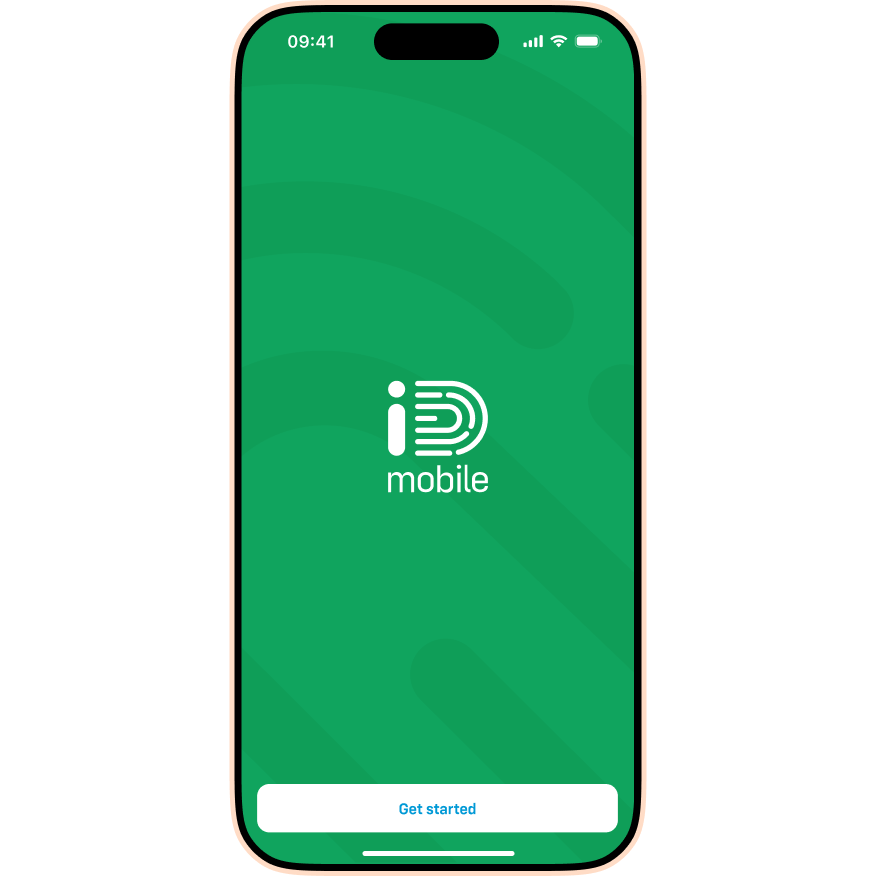
- Tap Get started.
- Enter the email address you used to register. Tap Next.
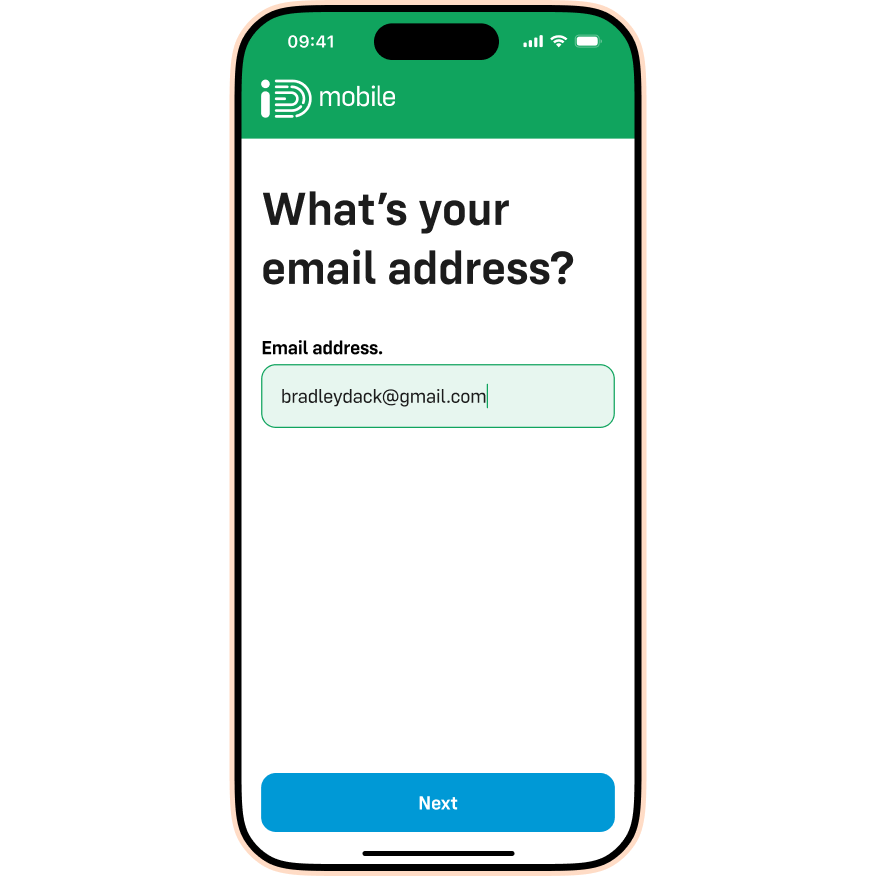
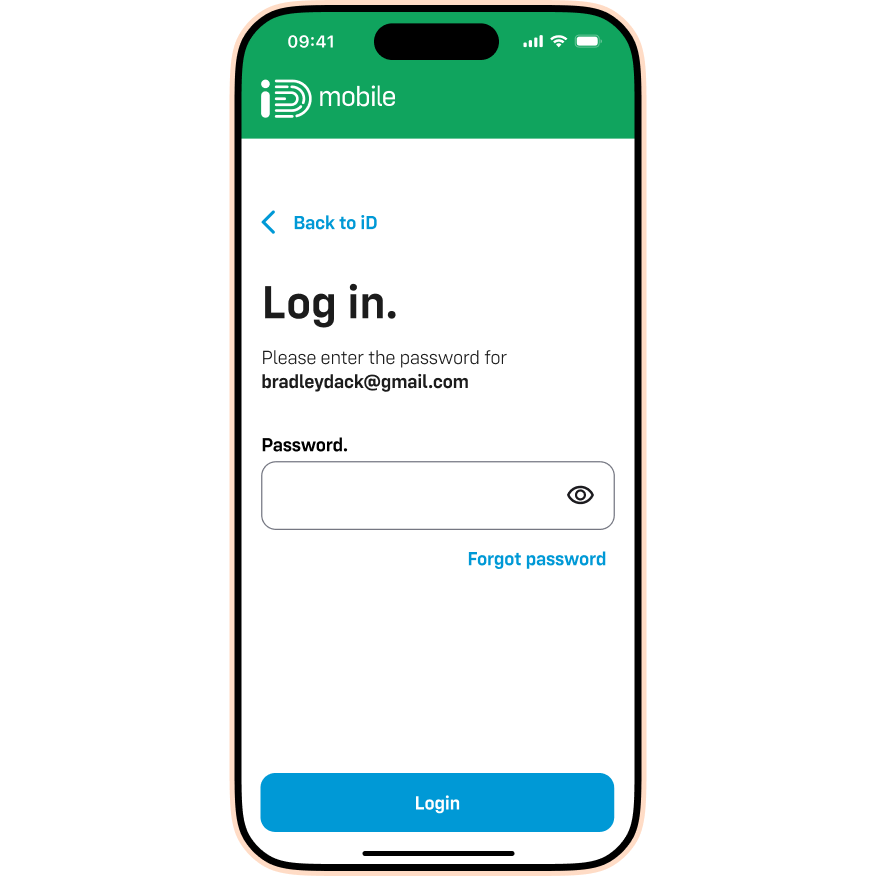
- Tap Forgot password.
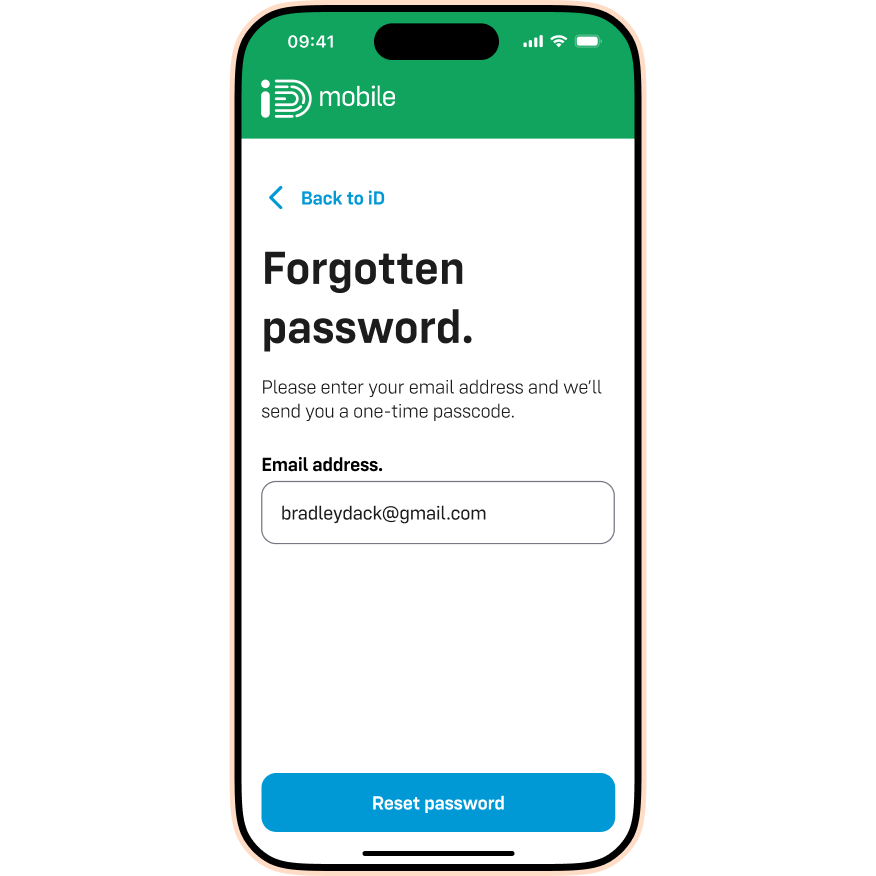
- Re-enter your email address. Tap Reset password.
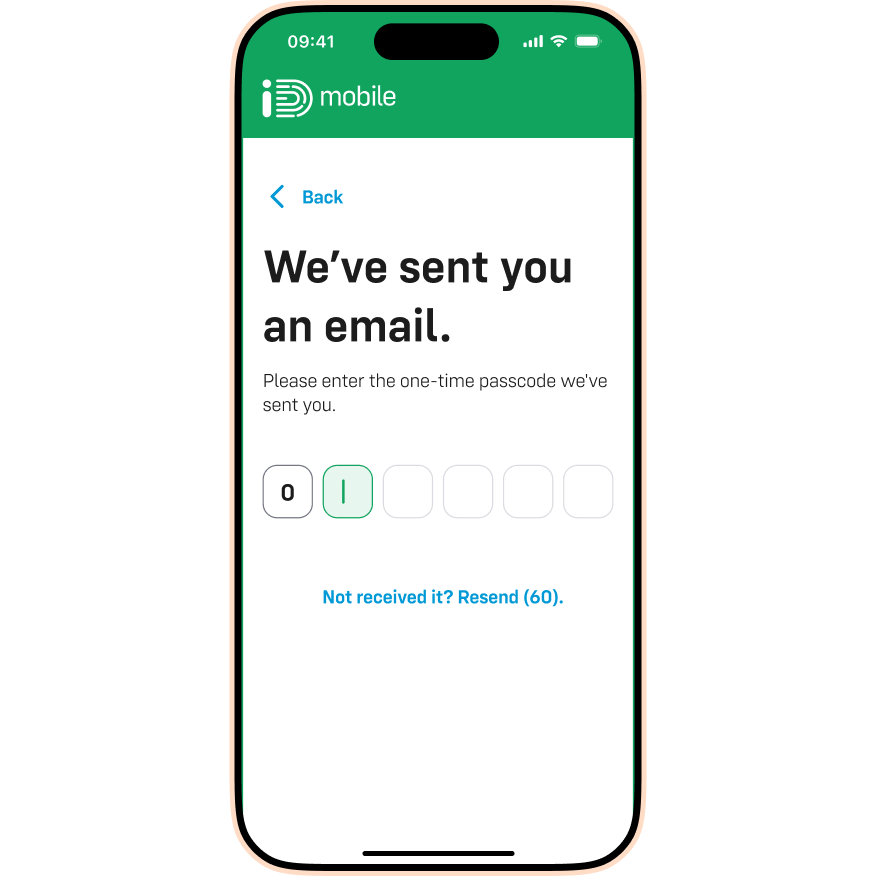
- You will receive an email with a 6-digit code. Enter this code into the app.
- Create a new password that meets the on-screen requirements. Tap Done.
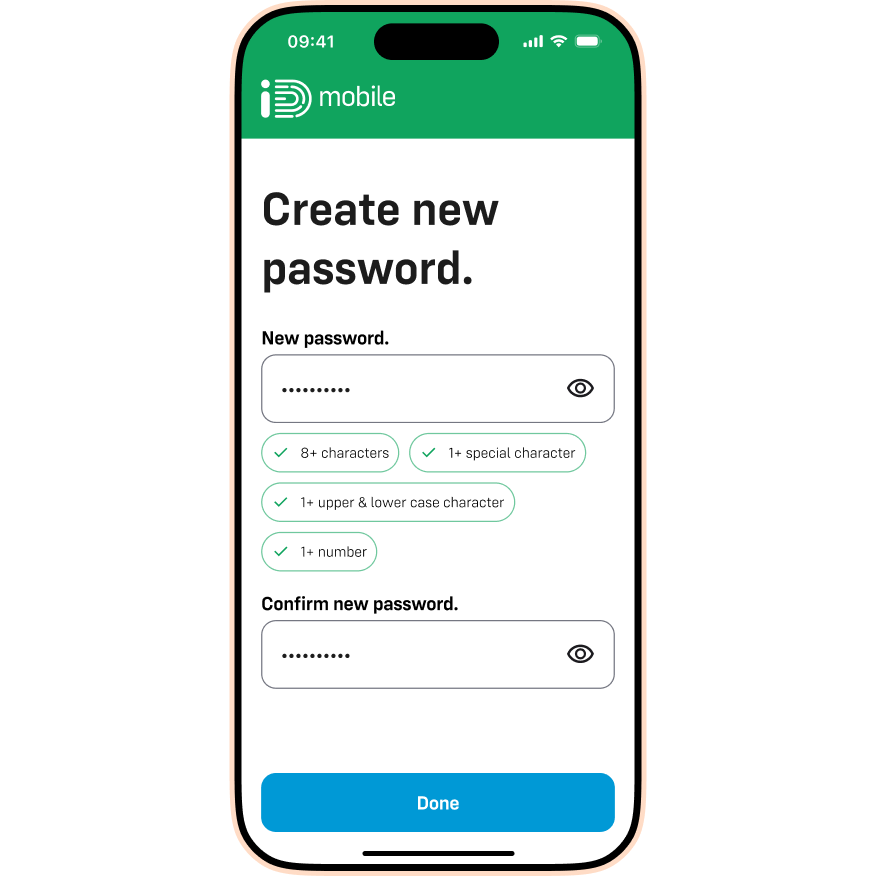
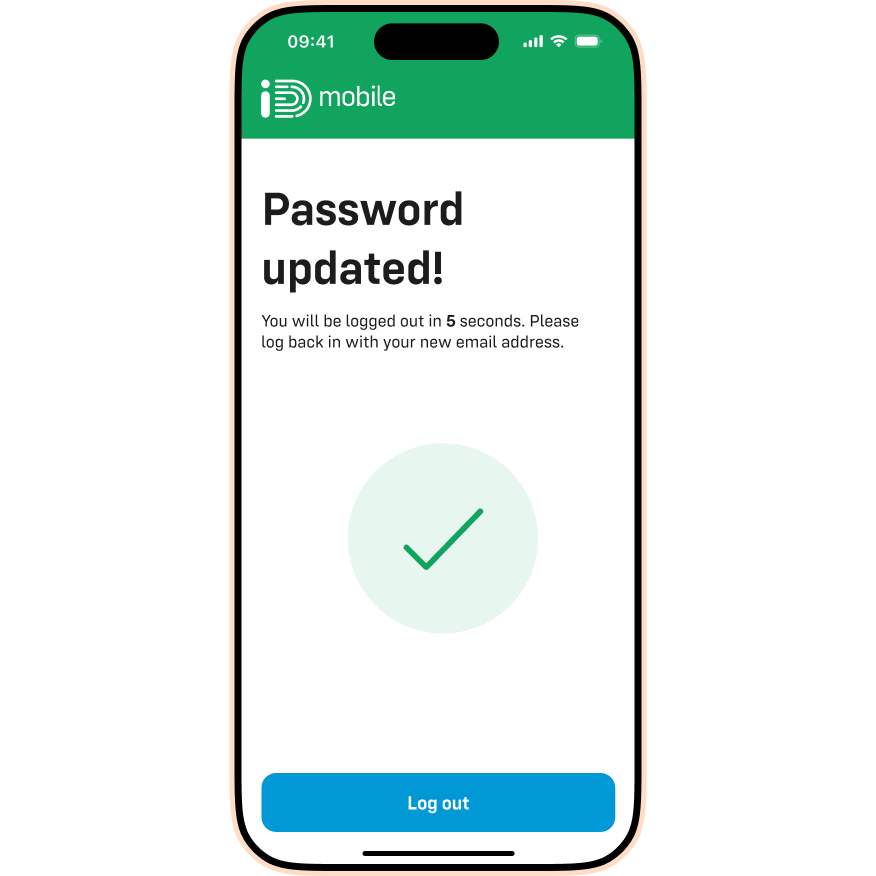
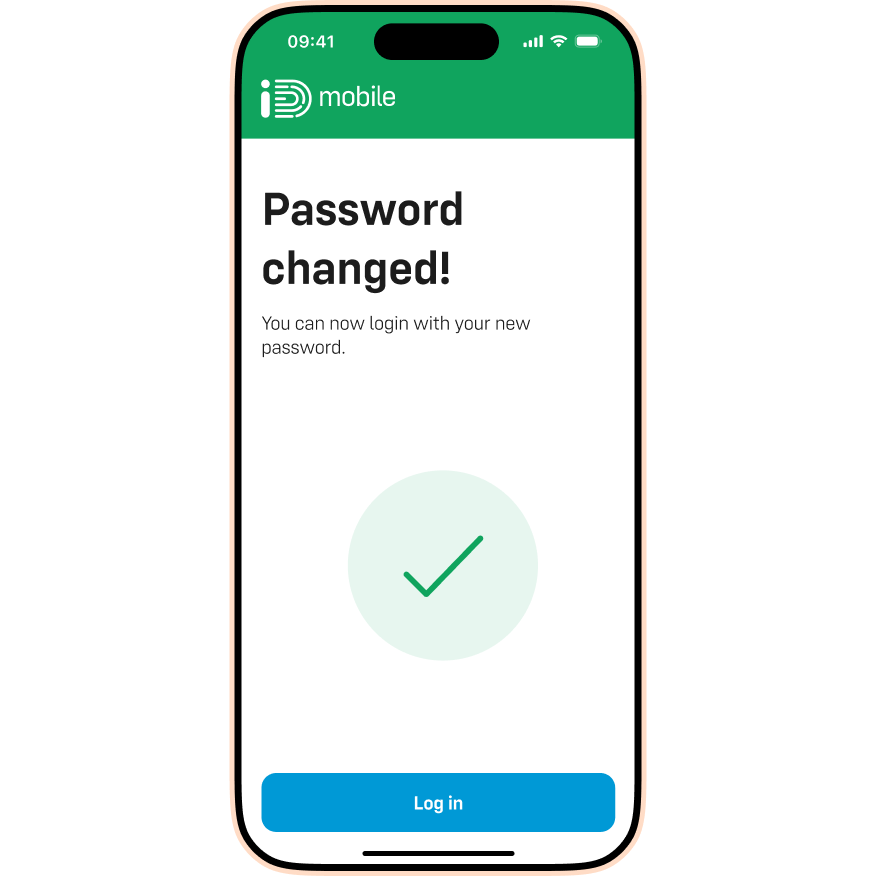
- Success – your password has been changed. Tap Login.
How to change your password in the iD Mobile app.
If you already know your password but want to change it, you can do so within the app or website:
- Log in to the iD Mobile app or my.idmobile.co.uk.
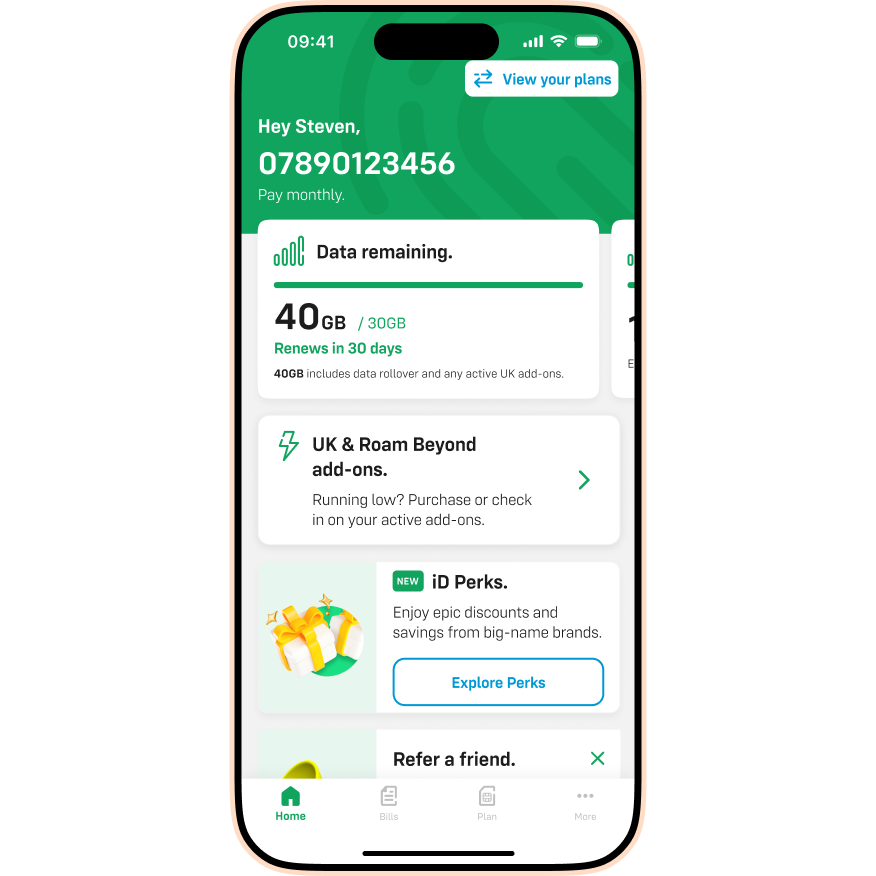
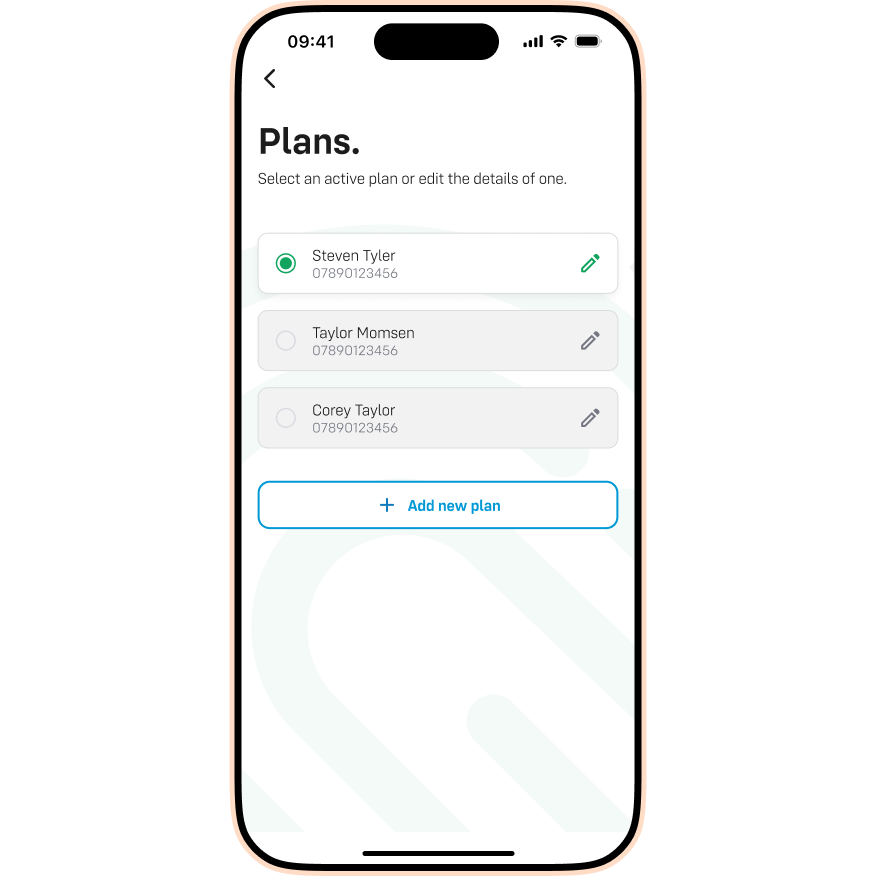
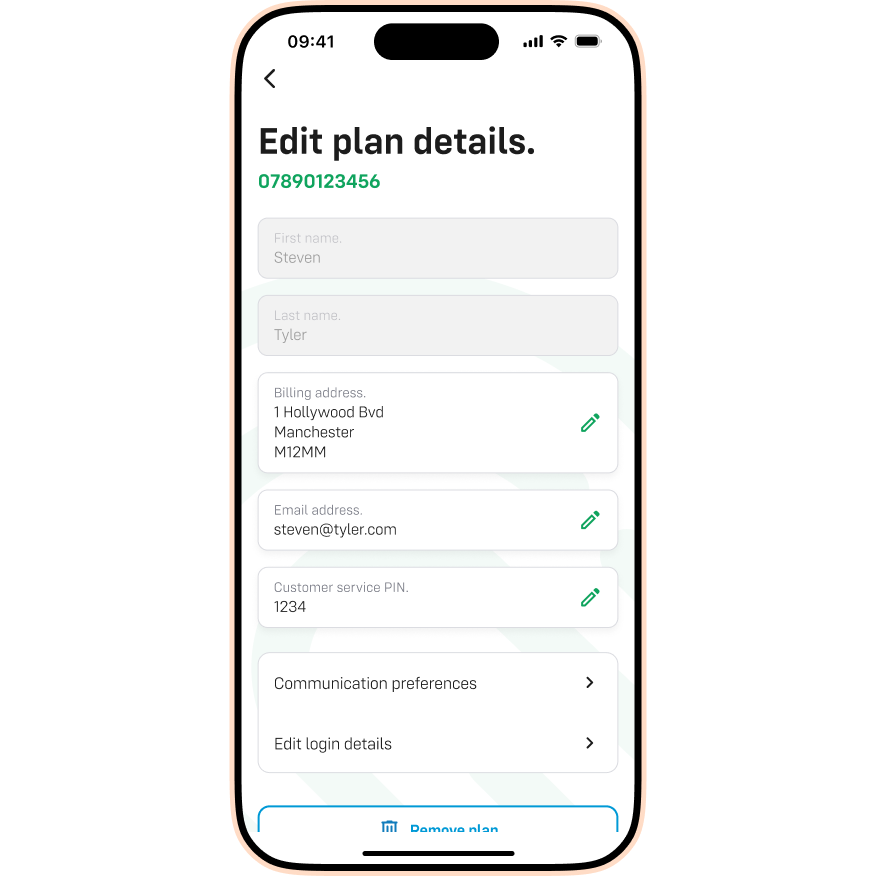
- Tap View your plans (or the Dashboard).
- Tap the Pencil icon for the plan you want to edit.
- Tap Edit login details.
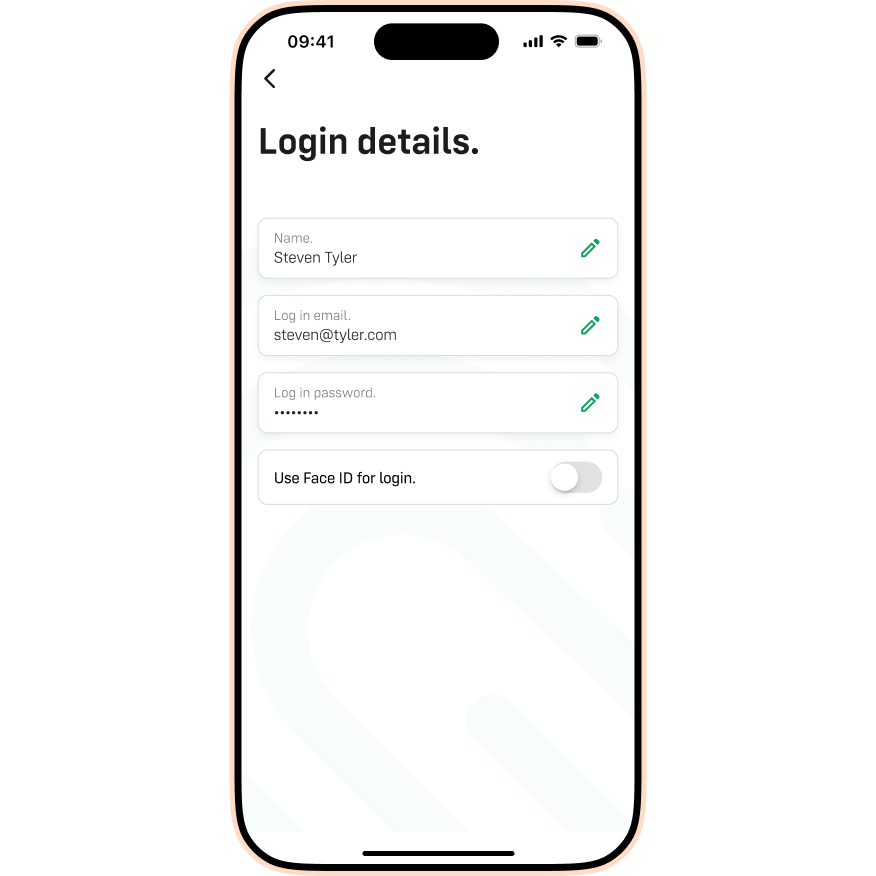
- Tap the Pencil icon in the Login password section.
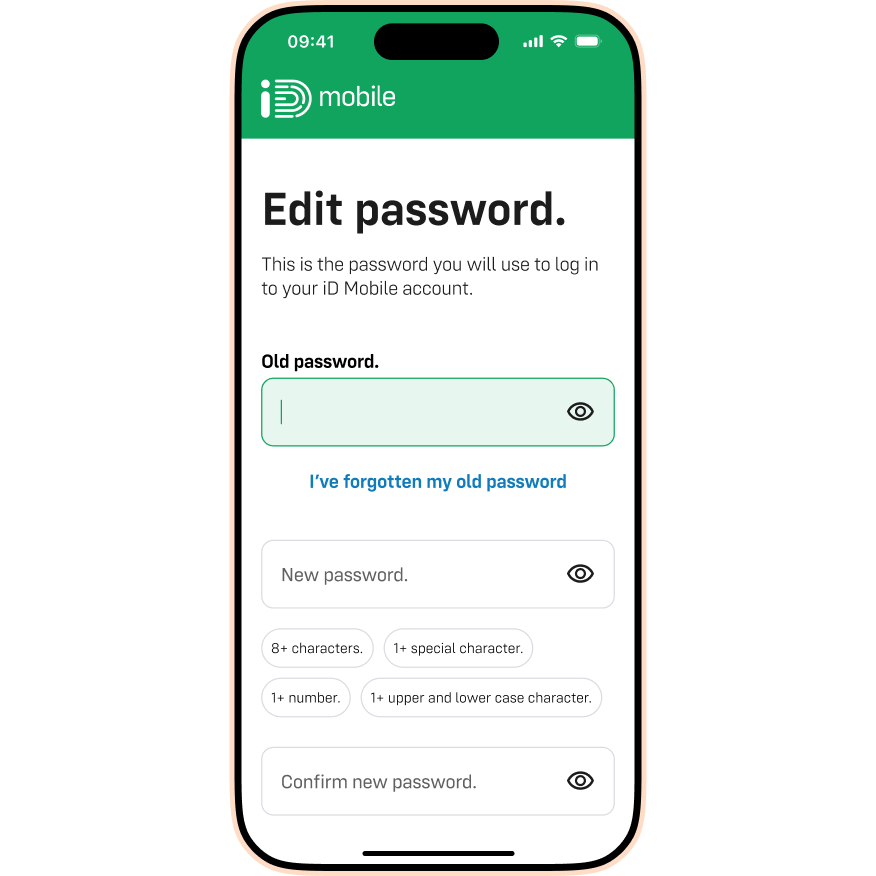
- Enter your new password. Tap Save changes.
- Tap Log out to secure your session.