

Give your iPhone or Android home screen a fresh look in just a few taps.
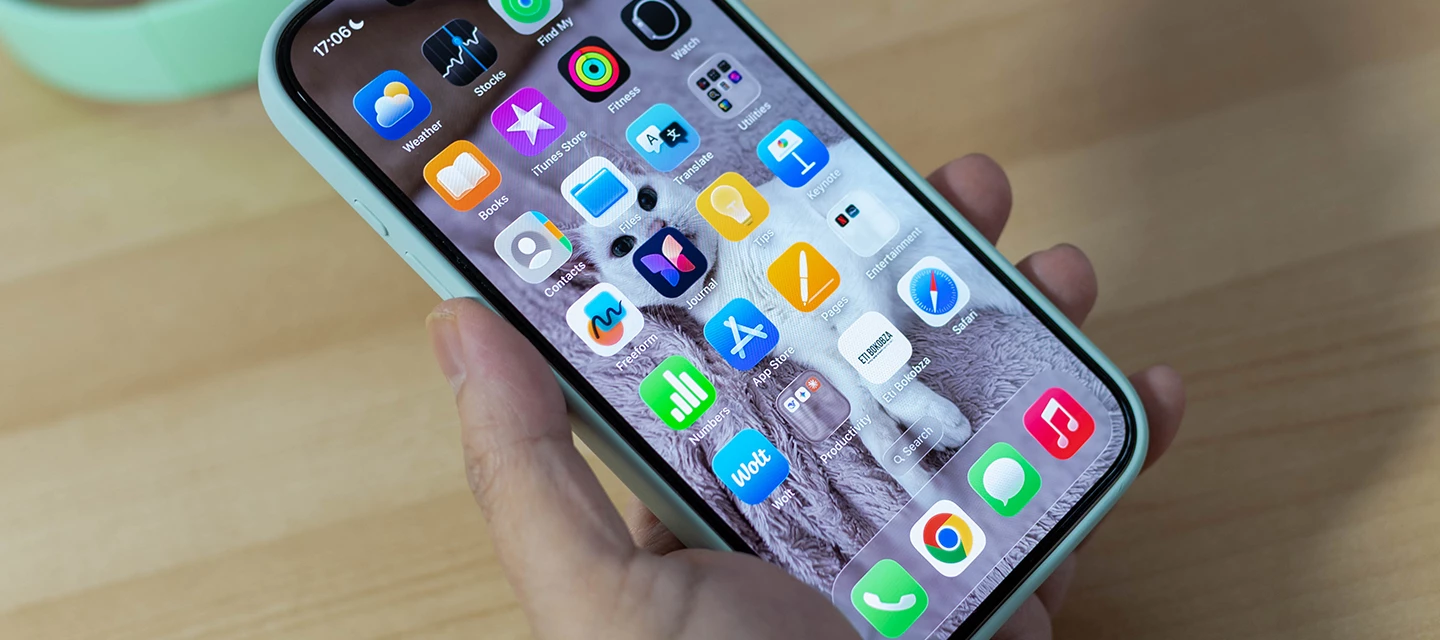
Did you know the average person checks their smartphone home screen more than 80 times a day? That’s a lot of screen time. So, there’s no reason to settle for a layout that looks exactly like everyone else’s. Both iPhone and Android devices give you loads of ways to personalise your phone. It’ll make it more useful for starters. And way more fun to use!
It could be that you want a cleaner look. Or maybe you just want easier access to your favourite apps. Whatever it is, we’ve got plenty of tips for you to get stuck into. Right, here’s how to give your home screen a fresh new look with only a few taps…
Break free from the grid.
For years, iPhone fans had to keep their app icons locked into a strict grid. If you wanted to pop a certain app in a specific spot, tough luck. Now though, Apple finally let you place icons and widgets wherever you want them.
This means you can get creative with your layout. One popular trick is to leave the centre of the screen empty. This frames your wallpaper and makes the image really stand out. You can also move your most-used apps to the bottom of the display, making them easier to reach with one-hand.
Android users have had this freedom for a long time. But modern Android phones have even more control now. Samsung’s One UI, for example, lets you change grid sizes and fine-tune your layout. If you want to go deeper with your customisation, check out tools like Home Up. It gives you extra ways to organise your screen exactly how you want it.
Match your icons to your style.
A great wallpaper will completely switch up the look of your phone. But if your app icons clash with it, the effect could feel a little messy and just plain naff.
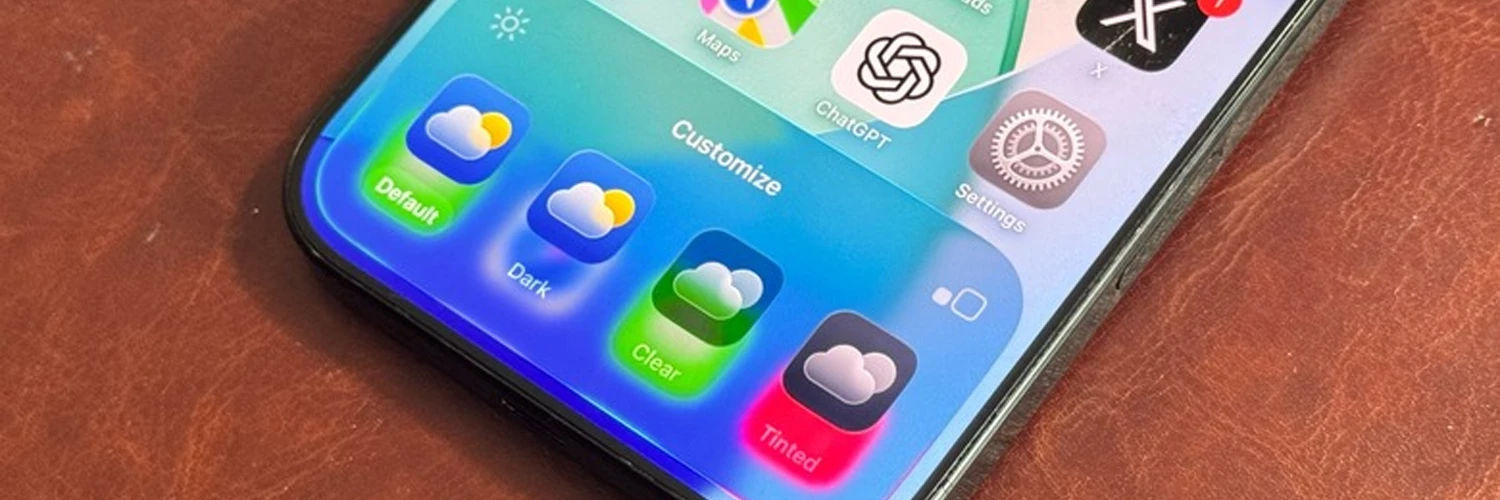
That’s why customising icons has become so popular. On iPhone, it’s possible to turn app icons dark or bold – or add a colour tint across the whole screen. Go for a moody grey or a calming blue. Or, if you really want to stand out, how about a bright neon pink?
To try it, long-press an empty area of your home screen. Then tap Edit, choose Customise and experiment with the Dark and Tinted options. Play around a bit and see what you like. You can make your phone feel entirely different in only a couple of minutes.
Android takes a slightly different approach. Material You automatically adapts any compatible app icons and interface colours to match your wallpaper. Change your background, and your device will instantly change to a fresh theme. It’s quick and simple to create something cool.
Ditch the labels and upsize your apps.
If you use an iPhone, try moving to Large icons in the customisation menu. This’ll remove the text labels underneath your apps, giving your home screen a much simpler (and cleaner) layout.
Anyone on Android can do something similar too. Some phones come with built-in options to adjust icon sizes and layouts. Another good idea is to organise apps into folders. Better still, use folders for similar types of app, whether that’s entertainment or shopping. This keeps your screen tidy without making apps tricky to find.
The less clutter you have, the easier it is to focus on the things you actually use every day. It’ll make your phone a lot easier on the eyes as well!
Supercharge your screen with widgets and launchers.
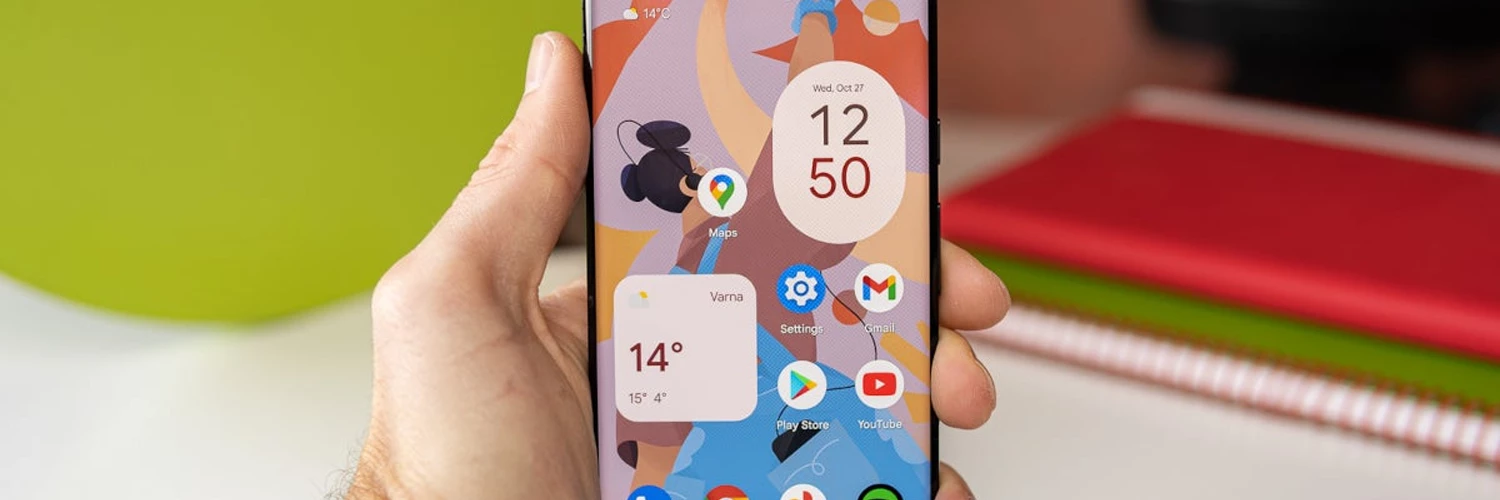
Widgets are now one of the most useful parts of a smartphone. You can add ones that display everything from weather forecasts and fitness progress to calendar events or music controls. The best part is that you can see all the important info without opening up an app.
Think about what you check the most often. If it’s the weather, add a weather widget. If you like to track steps or gym workouts, put a fitness one near the top of your screen. A few well-picked widgets could genuinely save you some time every day.
Android users get to go even further with third-party launchers. Apps like Nova Launcher let you customise almost everything – like gestures and folder styles. If you like to tweak every single tiny detail, a launcher is a great shout.
What’s the most useful widget on your home screen right now? Let us know in the comments down below!