

Keep your device free from clutter with our post-holiday phone purge!

The holiday might be over. But your phone probably still looks like you’re ready to hop on another flight. Between videos, playlists, boarding passes – and fifty versions of the same beach sunset – storage can disappear fast. Before you start deleting random files though, take a few minutes to see what’s using the most space. A smart approach will save time and stops you from accidentally removing something you wanted to keep!
Find out what’s eating your storage.
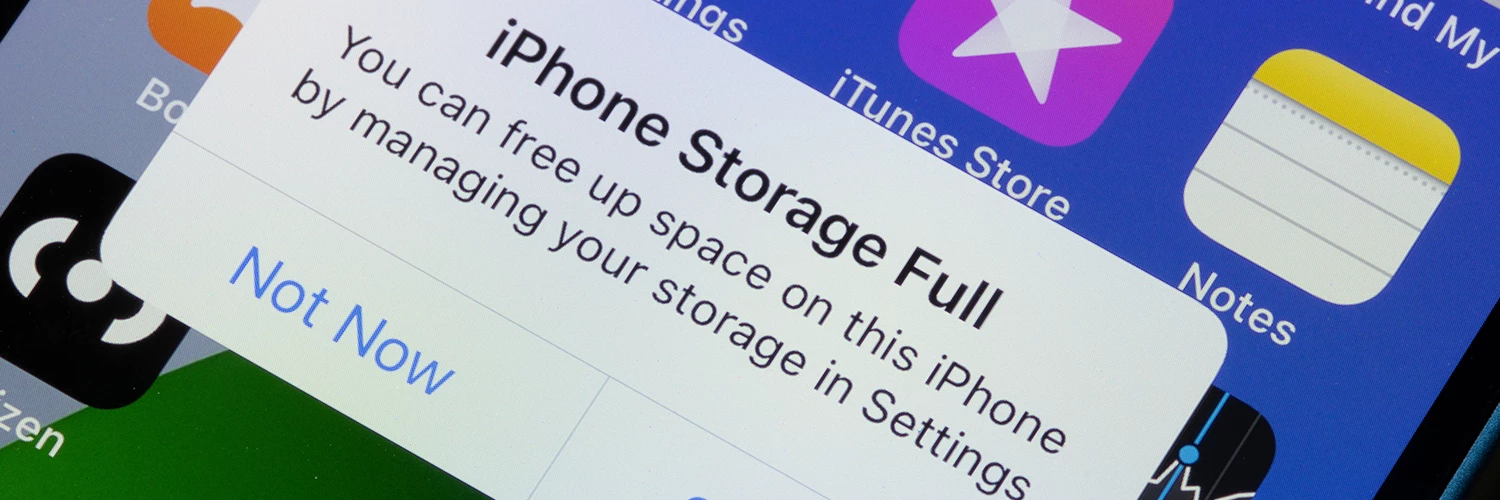
Start by checking the breakdown of your phone’s storage. It’ll give you a clear idea of what’s taking up the most room.
If you’ve got an iPhone, open ‘Settings’ > ‘General’ > then ‘iPhone Storage.’ You’ll see some suggestions from Apple about what’s worth removing, along with a list of your apps ranked by size. Android users can open ‘Settings’ and ‘Storage’, although the wording might be slightly different depending on your device.
Focus on the chunky categories first. Deleting a few tiny files won’t make a lot of difference. Especially if you’ve got several gigabytes of photos or app data sat somewhere else.
It’s also worth saying that device storage and cloud storage aren’t always the same thing. If a file is synced with iCloud or Google Photos etc, deleting it could impact any other devices that are connected too.
Say goodbye to forgotten apps.

Think about all the apps you downloaded for your trip. You probably won’t be using that translation tool, or a city guide now you’re back home.
For iPhone users you can switch on ‘Offload Unused Apps’. It removes the app while keeping its documents and data. If you need it again later, just tap on its icon and redownload it.
If you use Files by Google, the ‘Clean’ section tells you which apps haven’t been used for a while. Just be careful when you’re clearing out app data. Clearing a cache removes temporary files, while clearing storage can sign you out and remove saved settings.
Delete old downloads.

Downloaded content is one of the biggest post-holiday storage hogs.
The box set you saved for the flight home. That playlist for your big road trip. And the stack of podcasts for the beach. When put together, they all take up valuable space. The same goes for offline maps.
Remove downloads from inside the original app whenever you can. It helps to prevent accidental issues and keeps your saved titles or playlists intact.
For Apple Maps, check your ‘Offline Maps’ section and delete destinations you don’t need now. On Android, you should have a quick review of your media apps and their download areas.
Don’t forget your phone’s file manager too. Old PDFs, menus, digital tickets and travel docs can hide in there for months without you noticing. Time for a clear out!
Clear out messages and duplicate files.

Messages will quietly eat up your storage space. Especially those group chats packed with memes and funny cat vids. On an iPhone, open up the conversation. Then view the shared attachments and bin anything you don’t need anymore. You can also reduce the time messages are stored for if you’re happy for older chats to be removed automatically.
On an Android phone, Files by Google is useful for finding duplicate files, big docs, screenshots and temporary junk. When duplicate files pop up, keep the version marked as the original.
Lots of chat apps have their own storage tools as well. Spend a few minutes removing old videos, voice notes and forwarded clips that nobody is ever going to watch again.
Give your camera roll one last sweep.

Holiday snaps are usually the biggest culprit. After all, it’s tough to stop at just the one photo when the view is that good. This does mean you end up with a load of near-identical shots of the same thing though.
Got an iPhone? You can check the ‘Duplicates’ section in ‘Photos’ and merge any repeated images with a few taps. If you use Google Photos, open up ‘Manage Storage’ and review any blurry pics, screenshots and chunky videos in there.
Before deleting anything important, make sure you’ve backed up your photos. If you start using a tool that removes local copies after backup, remember that you might need an internet connection to view them later on.
Finally, empty the ‘Recently Deleted’ section on your phone’s bin once you’re certain everything is safe and sound. That’s the step that’ll actually free up the space.
A habit worth keeping.
The easiest way to avoid future storage warnings is a monthly tidy up. Check your storage breakdown, remove any apps you don’t use and clear out old downloads before they pile up. A few minutes every month can keep your phone running smoothly – and stop that dreaded storage warning flashing up at the worst possible moment.
Got any handy tips we’ve missed? Tell us all about them in the comments down below!