

Never have that lost-phone heart attack again.

We’ve all had that mini heart attack moment. You pat your pocket or rummage through your bag and… your phone is gone. Is it in the car? Did you leave it at the café? Or is it buried deep in between the sofa cushions?
Take a breath. Thankfully, Apple and Google have your back, with free tools that make finding your phone incredibly easy. They’re called Find My (for iPhone) and Find My Device (for Android), and they’re real lifesavers. We reckon every phone owner should activate them ASAP. Why? Because losing your phone isn’t just inconvenient. It can mean losing access to your contacts, banking apps and loads of other important stuff.
By the end of this mini guide, you’ll know how to set them up in under a minute – and even see how you can track your missing keys or bag too. Let’s dive in…
Why set this up in the first place?

Think of it as your very own fail safe. Once it’s been set up, you’ll have a few different ways to reunite with your phone. And you’ll never have to panic later on either…
- Play a sound – Lost your phone at home? Trigger a loud alert, even if it’s set to silent. Ideal for when it’s hiding in a pile of laundry in the back of your jeans.
- See it on a map – Get a real-time location or see its last known spot before the battery died.
- Secure your data – If your phone is stolen, you can lock it remotely or erase everything to keep your important data safe.
Top tip: Both Apple and Google let you display a custom message on the lock screen. Add something like ‘This phone is lost, please call…’ and if a good Samaritan finds it, they’ll know how to reach you.
How to set up ‘Find My’ on iPhone.

It’s really quick and easy to get Find My setup on your iPhone:
- Open Settings.
- Tap your name at the top.
- Select Find My > Find my iPhone.
- Toggle it On.
Top tip: Switch on Find My Network and Send Last Location as well. This’ll help you to track down your phone even if it’s offline or the battery is about to die. It’s clever stuff.
How to set up ‘Find My Device’ on Android.
The steps might vary ever so slightly (depending on the phone you’ve got), but here’s the general gist…
- Go to Settings > Security (or Security & Location on some mobiles).
- Tap Find My Device and toggle it On.
Top tip: Make sure you’re signed into your Google Account and have location services turned on. To check it’s working, visit android.com/find from any browser. From there, you can ring your phone, lock it or wipe it clean, all without touching the device.
What about your keys, wallet or bag?
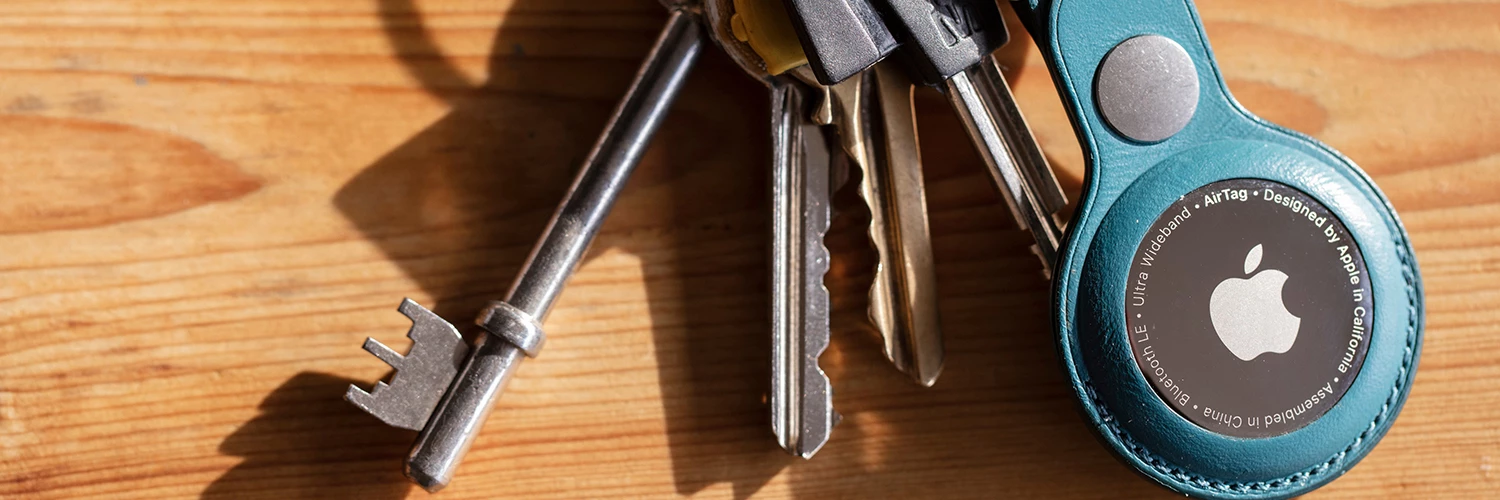
Phones aren’t the only things that go missing. For all of your other important bits and bobs…
- iPhone users – Grab yourself an AirTag or two. Attach these mini devices to your keys or pop one in your bag, and then track them in the Find My App. They’ll come in handy if you ever leave your rucksack on the bus or drop the front door key when you’re rushing out to work.
- Android users – Try Tile trackers or Samsung SmartTags. They work in a really similar way to Apple’s AirTags, using simple apps to show you the current location of your valuables.
These little gadgets are game changers for anyone (like us) who’s constantly losing things.
Top tip: A lot of these trackers also have a ‘reverse find’ feature – press a button on the tag, and your phone rings. Perfect for those mornings where everything seems to disappear all at once!
Bonus safety suggestions.
Here’s a few Find My extras that are worth doing when you can…
- Keep location services on – Both Apple and Google rely on location data to track your phone.
- Enable two-factor authentication – This adds an extra layer of security to your accounts, making it harder for thieves to access your info.
- Charge smart – A dead battery means no live tracking. So, keep your phone topped up when you can.
- Test it now – Don’t wait until your phone is missing. Log into iCloud or android.com/find now and make sure everything works properly.
In a nutshell.
Setting up either version of Find My takes less than 60 seconds and could save you hours of stress. It’s arguably the single best thing you can do for your device’s security and your own sanity!
Have you ever used Find My to save the day? Share your stories or tips in the comments with us down below.

