

The super-fast way to delete thousands of old photos.

You’re on the beach, the sun is setting, and you’re just about to capture that perfect vista. Then BAM. You pull out your phone, but instead of the camera, you get the dreaded ‘Storage Full’ notification. Annoying, right? We’ve all been there.
The biggest culprit is usually your photo gallery. If it’s anything like ours, it’s probably clogged up with thousands of screenshots, duplicate photos and out of focus images. Luckily though, there’s loads of quick ways to get back those precious gigabytes. We’ll show you exactly how to clean up your gallery, make space for new memories, and get your phone back to top speeds! Let’s dive in…
Start with the tools you already have.
Before you download any new apps, check out the free clean-up tools that are hidden away in your phone’s photo app. They’ll help you find and delete duplicates, blurry pics and old screenshots. And they make the whole process super straightforward.
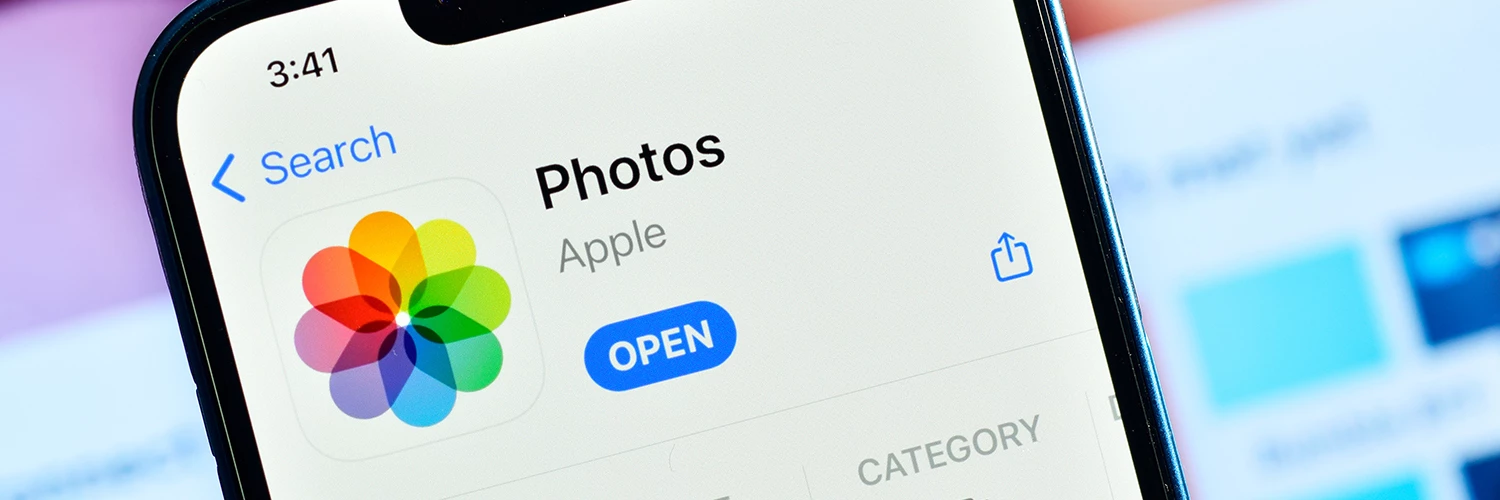
For iPhone users:
The Apple Photos app has a nifty feature called the ‘Duplicates’ album. Can’t find it? It’s tucked away under ‘Utilities’. It’ll automatically find and group identical (or very similar) snaps, making it nice and easy to merge duplicates and keep only the best quality version.
This is how to find it…
- Open the Photos app.
- Tap on the ‘Albums’ tab.
- Scroll down to the ‘Utilities’ section and press ‘Duplicates’.
- Look over the groups of duplicate photos.
- Tap on ‘Merge’ to keep the best version and delete the rest.

For Android users:
Google Photos also has a handy ‘Manage storage’ section that’s great for decluttering your gallery. In here, you’ll get clever ‘Clean up’ suggestions, which highlight large videos, naff photos and the like that you probably don’t need anymore.
Here’s how to use it…
- Open the Google Photos app.
- Tap on the ‘More’ tab (the three horizontal lines).
- Select ‘Manage storage’.
- Press ‘Clean up’ to see the suggestions.
- Review and delete the photos and videos you don’t want.
Make cleaning fun with ‘swipe to delete apps’.
At the end of the day, it’s admin. But cleaning out your photo gallery doesn’t have to be a massive chore. With swipe to delete apps, you can turn the task into a way more interactive experience. Think of it like a dating app, but for your pics. Instead of swiping left and right on potential matches, you’re swiping to keep or delete photos.

For iOS users:
Slider makes managing your photos simple. Its clean interface lets you whizz through your camera roll and sort your faves from the fails. Here’s how to get started…
- Download Slider from the App Store.
- Open the app and give it access to your photos.
- Start swiping! If you like the pic, swipe right. Hate it? Swipe left.
- The app also picks out any duplicate images and rubbish photos. And you won’t have to dig through your gallery to find them yourself.
For Android users:
Sponge is the Android equivalent of Slider, and it’s just as satisfying. With its speedy swiping mechanic, you can tidy up your gallery in no time. Check out this quick guide…
- Download Sponge from the Google Play Store.
- Fire up the app and let it access your photos.
- Swipe through your gallery. Swipe right to keep a photo or left to get rid of it.
- Sponge will also pick out duplicates and low-quality images, helping you make quick decisions.
Enjoy your newfound freedom!
Once you’ve given your phone a bit of a spring clean, you should notice a big difference in its performance. You won’t just have more space for new apps, playlists and pics. Hopefully, your phone will run a lot faster and smoother too. That means apps will load in a flash, letting you multitask and swap between them without stuttering. Throw in improved battery life – a chocka photo gallery slows things right down and uses more juice – and it’s a win-win situation.
Remember though…

Just to be on the safe side, it’s smart to back up your photos before you delete anything. After all, you might remove one by accident. And if you do, it could be gone for good. You can use cloud storage services like iCloud, Google Photos or Dropbox to store a copy of all your pictures and videos.
Give these tips a try and share your results with us in the comments down below. Got any little hacks we’ve missed? Tell us about those too!

