
How to turn your phone into your own portable Wi-Fi network.
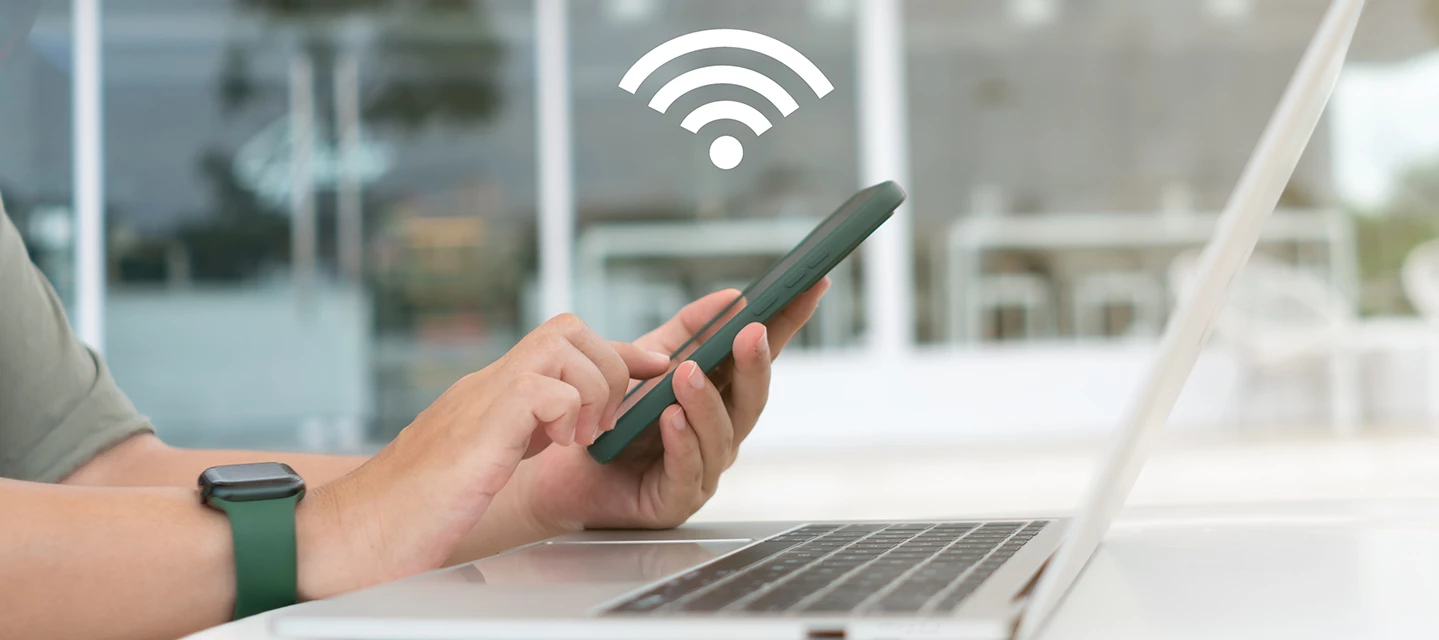
Ever found yourself needing to send a last-minute work email from your laptop on a train commute? Or how about trying to keep the kids entertained on a tablet on that long car journey? The struggle to find decent public Wi-Fi is real - and often frustrating.
But here’s the good news: your smartphone has a hidden superpower. It’s called hotspotting (or tethering) and it lets you turn your phone into your very own portable Wi-Fi network. No café passwords. No dodgy connections. Just you, your phone and the freedom to get online wherever you have signal.
Hotspotting lets you share your phone’s mobile data with other devices like your laptop or tablet. It’s perfect for working on the go, streaming on long trips or just staying connected when Wi-Fi isn’t an option. And the best part? You’re using the data plan you already have. No extra kit. No extra cost.
How to set up your personal hotspot – step-by-step.

It only takes a minute to turn your phone into a hotspot. Here’s how to do it on the most popular devices:
If you’re using an iPhone:
- Go to Settings > Personal Hotspot.
- Toggle on Allow Others to Join.
- Make a note of the Wi-Fi password shown - this is what you’ll enter on your other device.
For Samsung Galaxy users:
- Go to Settings > Connections.
- Tap Mobile Hotspot and Tethering.
- Tap Mobile Hotspot and toggle it on. You can also customise the network name and password here.
For Google Pixel or other Android phones:
- Go to Settings > Network & internet.
- Tap Hotspot & tethering.
- Tap Wi-Fi hotspot and toggle it on. You’ll see options to change the hotspot name and password.
Hotspotting is about to get even better.

Here’s something cool worth knowing. Your hotspotting is about to get even better. VodafoneThree has activated an extra 5MHz slice of the 1800MHz spectrum for 4G. And if you’re not sure whether that’s a good thing or not, think of it this way.
Spectrum bands are like different types of roads - this one’s a multi-lane motorway with great coverage and capacity.
But what does that mean for you? It’s like adding an extra lane to a busy road during rush hour. More space means less congestion. So, whether you’re streaming, scrolling or hotspotting on your laptop, your connection should feel smoother and more responsive - especially during peak times.
Quick heads-up: while this upgrade improves overall capacity, your actual experience can still vary depending on where you are and local conditions.
Top tips for smart hotspotting.
Hotspotting is brilliant - but it pays to be smart about it. Here’s how:
- Keep an eye on your data. Any device you connect will use your phone’s data allowance. If you’re streaming or downloading big files, check your usage in the iD Mobile app so you don’t get caught out.
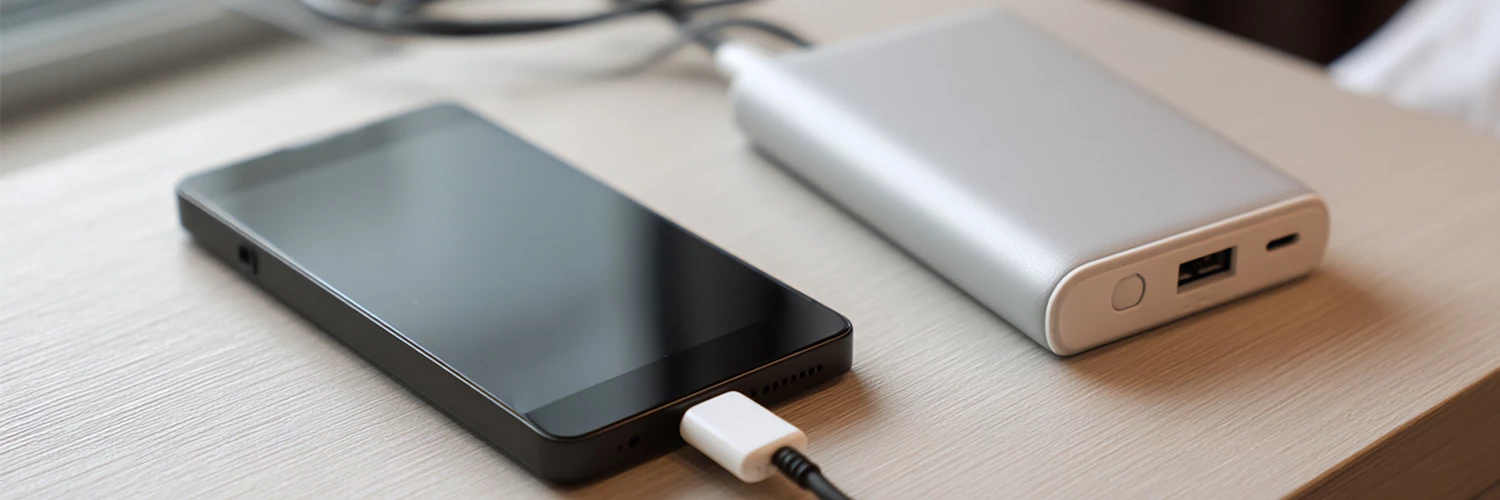
- Save your battery. Hotspotting can drain your phone fast. Plug into a wall socket, laptop or portable power bank if you can.
- Stay secure. Always use a strong, unique password for your hotspot. You can set this in your phone’s hotspot settings to keep unwanted guests off your network.
Ready to try it?
You’re now ready to enjoy the freedom of your own personal, portable Wi-Fi. You’ll never have to hang around a coffee shop for free Wi-Fi again!
Already use hotspots? Think there’s some tips we’ve missed out? Share your hotspot hot takes with the Community!

