

The savvy traveller’s guide to staying connected in the UK.

You don’t have to hop on a plane for a great holiday. The UK’s full of top spots for a weekend away or a full-on minibreak. But wherever you are, you probably want to stay connected. Otherwise, how are you meant to share those stunning snaps on the Gram? Well, with our handy guide, you won’t be offline for long…
Connecting to train and coach Wi-Fi.

Just because you’re on a train or a coach, it doesn’t mean you can’t keep up with the group chat. Most have a special Wi-Fi service onboard that’ll let you use your phone as normal. Getting online isn’t difficult either…
- Check for free Wi-Fi services – Open up your Wi-Fi settings and look for the network name (SSID) that’s specific to the transport you’re on – e.g. Southwest Rail Wi-Fi. Tap on it, and you’ll be asked for your email address. Enter that and you should be ready to browse, message and more.
- Stay safe on public Wi-Fi – Always check the network is secured. If you’re unsure, ask a member of staff before you decide to hit connect. And rule number one – never access any details that are sensitive, like your banking info, passwords, or your email account while you’re connected. It’s better to be safe than sorry.
4G on the London underground.

The tube is the easiest (and fastest) way to get around the capital. But you’re underground, so surely your connection is going to be pretty spotty? Wrong. Through iD Mobile, you get full 4G functionality. Here’s how to use it safely and effectively…
- Make sure you’ve got a iD Mobile SIM – If you want to use 4G on the tube, make sure you’ve got a iD Mobile SIM card.
- Turn off auto-connect – Just like with train and coach Wi-Fi, turn off the auto-connect feature to stop your phone from joining insecure networks without your say so.
- Avoid sensitive info – Don’t access any important info like bank accounts or your email on public networks. It’s better to wait until you’re back home and on your own Wi-Fi for that.
- Use a VPN – For an extra layer of security, you can always download a VPN. It’ll encrypt your data and protect it from prying eyes.
- Stay alert – Keep an eye on who’s around you. The tube can get packed – especially during rush hour – and shoulder surfers might be watching your screen.
Hotspotting: share your connection.
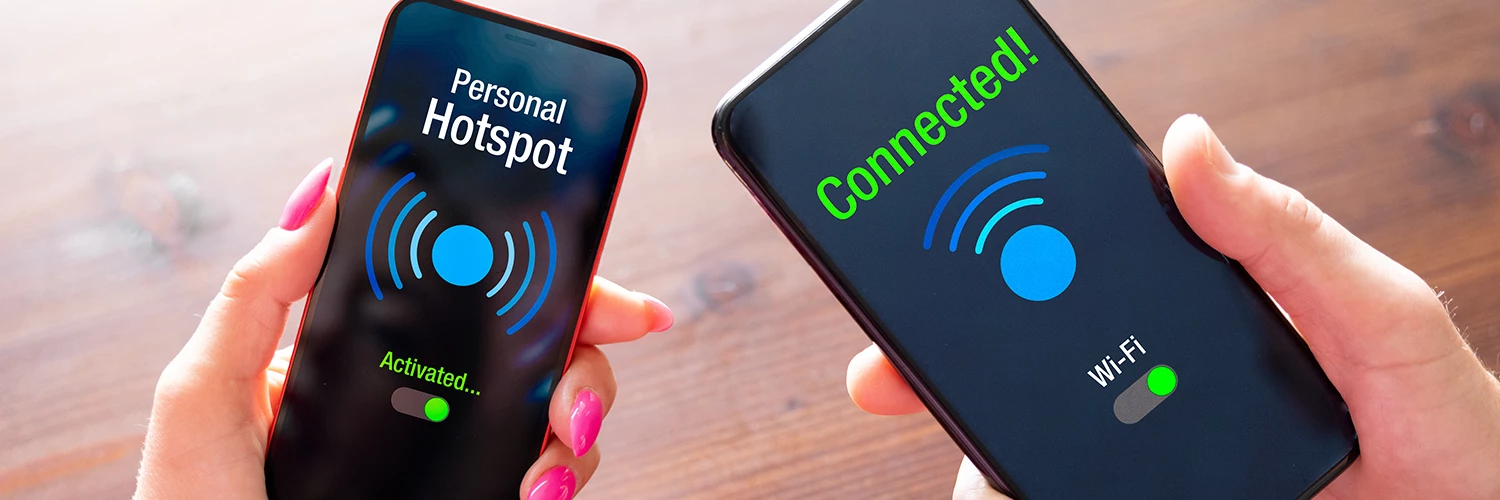
Hotspotting is a handy feature that lets you share your 4G/5G connection with others. And it’s great if you need to get online with your laptop or tablet too. Follow these steps and you’ll be good to go…
- Enable hotspotting – On your mobile, go to your settings and switch on your personal hotspot. If you want to, you can add a password for some added protection.
- Connect other devices – On the device you want to connect, select your phone’s Wi-Fi network and enter the password.
- Save battery – Hotspotting can drain your battery quickly, so keep a power bank handy.
- Manage data usage – Don’t go overboard with your data – especially if you’re on a limited plan. You can usually monitor your data usage in your phone’s settings.
Wi-Fi calling: stay connected in poor signal areas.

Wi-Fi calling is a lifesaver when you’re in an area with spotty coverage. Setting it up and using it is simple too…
- Check phone compatibility – If you’ve got a modern smartphone, it should support Wi-Fi calling. But it’s always good to double check.
- Enable Wi-Fi calling – Head to your settings, find Wi-Fi calling and turn it on. You might have to type in your phone number for verification.
- Connect to Wi-Fi – Make sure you’re connected to a Wi-Fi network. This could be at a coffee shop, a hotel, or pretty much any place with a reliable connection.
- Make calls – Now you can make and receive calls as usual, but they’ll use the Wi-Fi network instead of your cellular signal.
General device safety tips.
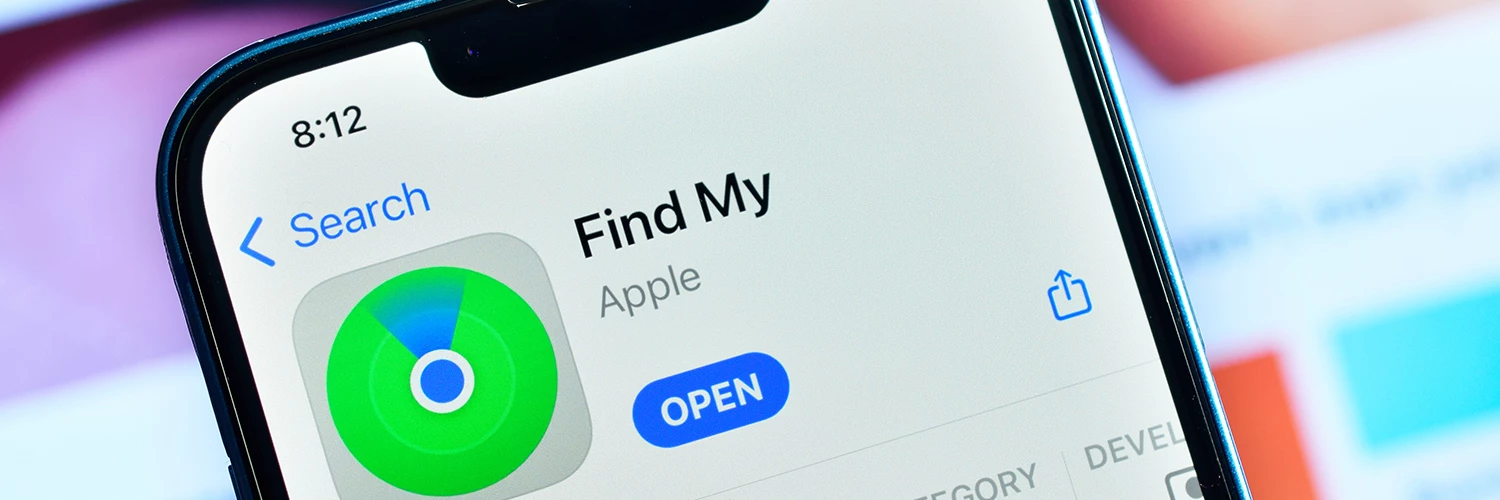
Keeping your phone safe is just as important as staying connected…
- Turn off Bluetooth and Wi-Fi when you’re not using it – It doesn’t just save the battery. It’ll lower the risk of any unauthorized access too.
- Activate find my phone – Switch on features like Find my Phone to track down your device if it’s lost or stolen. You can set this up in your phone’s settings.
- Use a case and screen protector – A simple, but a good one. A solid, sturdy case and screen protector can save you a lot of trouble – and a big repair bill!
Got any tips we haven’t mentioned? Tell us all about them in the comments down below!

