
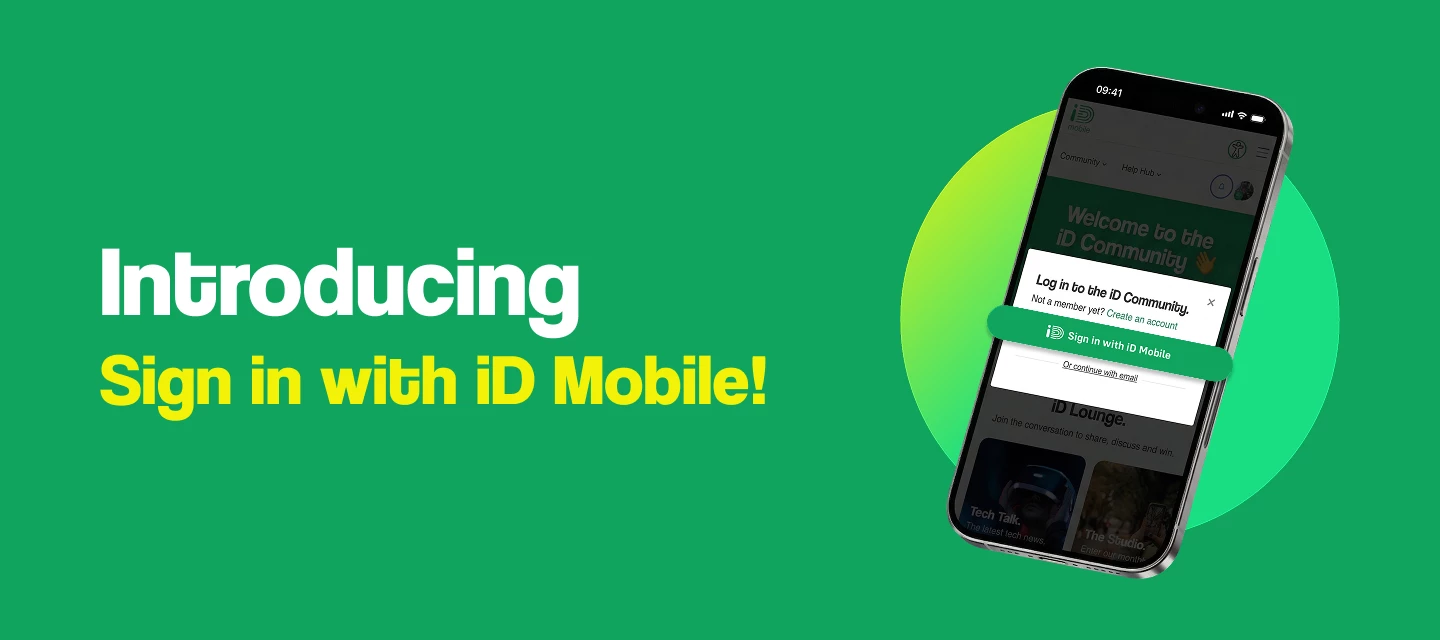

We're excited to announce a new and easier way to access the iD Community... Sign in with iD Mobile!
This new feature makes logging in simple. Instead of managing multiple accounts, you can now use your single set of iD Mobile login details, the exact same email and password you use for the iD Mobile app or my.idmobile.co.uk, to access the Community too.
That means fewer passwords to remember and quicker access to all the help, support, and conversation.
This guide walks you through how to use the new feature, whether you're an existing member or joining us for the first time.
I already have an iD Community account.
If you're already a member of the iD Community, you can link your existing account. This lets you use the 'Sign in with iD Mobile' button for all future visits.
To link your accounts, the email address you use for the Community must exactly match the email address connected to your iD Mobile app.
| If... | How to log in |
|---|---|
| Your emails match For example: You use johnsmith@email.co.uk for both the iD Mobile app and your iD Community account. | Simply click 'Sign in with iD Mobile' and follow the journey. We'll automatically link your accounts together. |
| Your emails don't match For example: You use johnsmith@email.co.uk for the iD Mobile app, but a completely different email for the iD Community. | Just log in as usual using the standard email and password boxes. You cannot update your Community email address, so please continue to use your existing login details. |
I'm new to the iD Community.
Welcome! Joining the iD Community is now easier than ever. You can get set up in just a few clicks.
Here's how to get started using your iD Mobile details:
- Go to the iD Community homepage and click the 'Create an account' button.
- On the registration screen, click 'Sign in with iD Mobile'.
- Enter the email address and password you use for the iD Mobile app.
- You will then be asked to set a username. This acts as your public name on all your posts.
- Read and accept our Terms & Conditions.
- Click 'Save' to complete your registration.
And that's it! You're now ready to start exploring, posting, and connecting with other members.
Need help?
If you run into any issues using 'Sign in with iD Mobile' or linking your existing account, please leave a comment below describing the problem and our team will jump in to help. Please remember to keep your personal information safe and never share private details, like your phone number or passwords, in the public comments.

